Risk Controls
Located via the Configuration area of the Access PaySuite merchant portal, Risk Controls provide an intuitive interface to manage core fraud prevention functionality for your Access PaySuite merchant account.
Navigating the ever-changing online fraud space can sometimes be quite challenging and complicated. We have compacted this concept into four critical aspects of fraud prevention which we believe are essential tools to help you manage this process in a simple and efficient manner.
You can find more information on each element of the Risk Control features below. Any transactions declined by Risk Controls will be clearly visible in the transactions area.
3DSecure
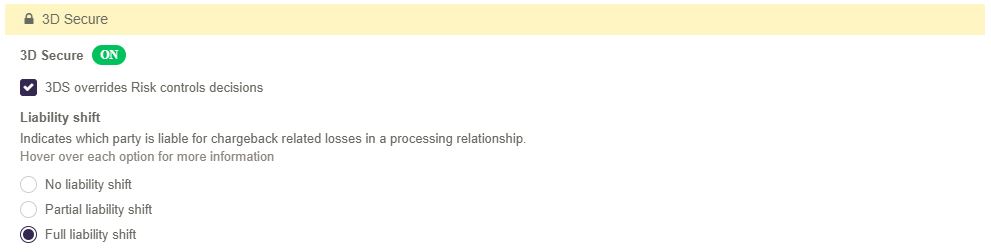
Here you can view if 3DSecure has been enabled for your installation. If enabled further options are available for interaction.
- 3DS override: If enabled, successful 3DS transactions will ignore AVS/Velocity/Negative Listing risk rules.
- 3DSecure Liability
- None: Transactions will never be blocked by Risk Controls due to 3DSecure status or outcome. 3DSecure will still be performed when available. Transactions may be processed for which the merchant has liability for chargebacks.
- Liability Shift: Risk Controls will decline transactions if 3DSecure is not supported for the scheme or an error occurred with the 3DSecure service. For all permitted transactions liability will rest with the card issuer for qualifying chargeback and card types.
- Full Authentication: All transactions where the cardholder was not authenticated by the issuer will be declined by Risk Controls. For all permitted transactions liability will rest with the card issuer for qualifying chargeback and card types.
AVS and CV2 Verification
CV2 is the Card Verification Value — the three or four digits printed on the card, which are not stored or recorded anywhere else. It provides security for card not present payments. The name and acronym vary by scheme: CV2, CSC, CID, CVC2, CVD, CVE, CVN2 and CVV2 all refer to it. Responses include Match, No Match and Not Checked, or there may be no response at all.
AVS is the Address Verification System. It checks only the numerics of the first line of the address and the numerics of the postcode. Responses include Match, No Match, Partial Match Address, Partial Match Postcode and Not Checked, or there may be no response at all. AVS is not available worldwide, and not all issuers support it.
A failed check does not necessarily cause a transaction to be declined. The checks are designed to give you information on whether or not to proceed, and the Risk Controls settings below determine which outcomes you accept.
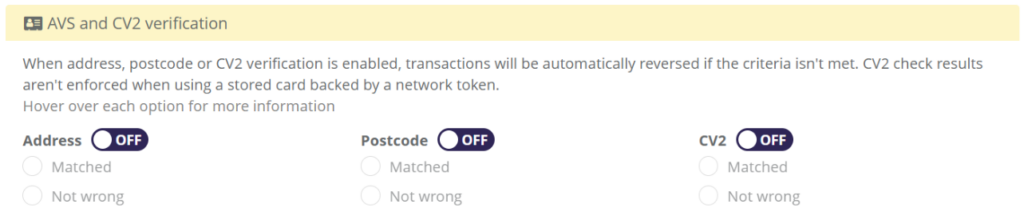
Here you can customize settings for Address, Postcode, and CV2 verification. Note that CV2 check results aren’t enforced for transactions using a network token. Multiple combinations of rules are possible. These rules will decline transactions if the below criteria are not met.
- Matched: The check has been performed successfully and the data matches. This check will always fail if no data is passed through.
- Not Wrong: The check did not result in a definitive failure or has not been performed.
Velocity Rules
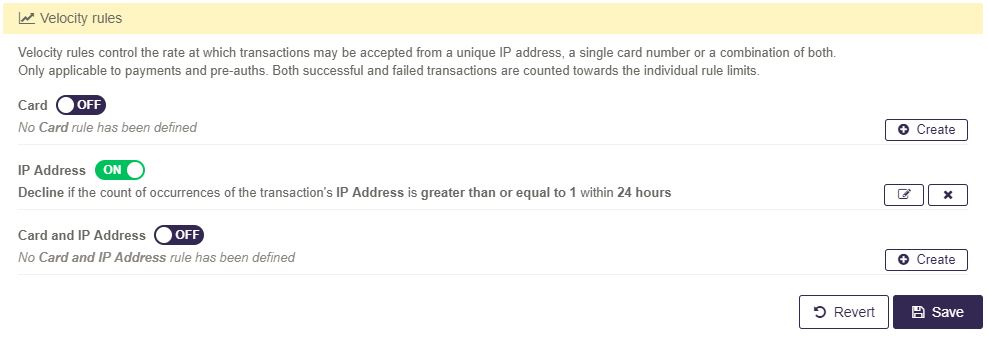
Here you can view, create, edit, and delete Velocity rules for your installation. Velocity rules control the rate at which transactions may be accepted from a unique IP address, a single card number or a combination of both. These rules will decline transactions if the below criteria are not met.
- Card: Specify how many occurrences of a transaction’s card are permitted in a certain timeframe.
- IP Address: Specify how many occurrences of a transaction’s IP are permitted in a certain timeframe.
- Card and IP Address: Specify how many occurrences of a transaction’s card and IP are permitted within the same timeframe.
Negative Listing
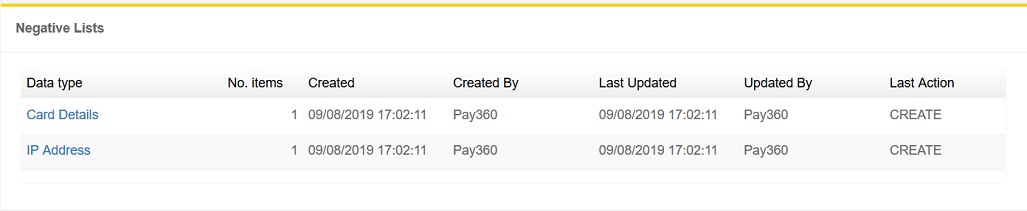
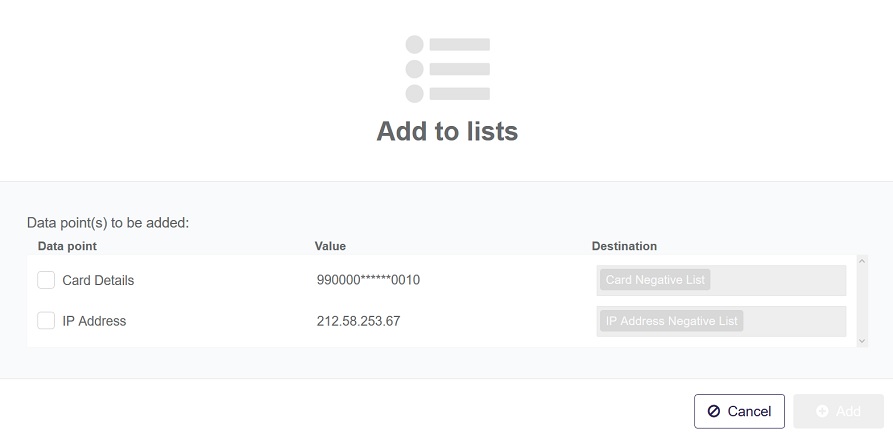
Here you can view and edit IP and Card negative lists for your installation. Any transactions containing negative listed parameters will be automatically declined.
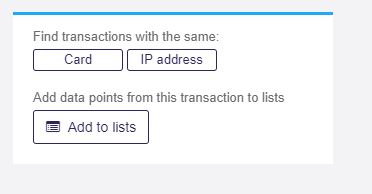
A card or IP can be added to a negative list using the ‘Add to lists’ feature when viewing information in the Transaction Details area.